The panel in Etch.
The EtchPress library inside the Etch builder: search, preview, insert, build a kit's whole site, start a page from a design, and keep a page's inserts current. It comes with the EtchPress Runtime plugin.
Open it
Install the EtchPress Runtime plugin and activate your licence key (The runtime on WordPress). Then, in the Etch builder, click the EtchPress button in the tool rail on the left, or press Ctrl+Shift+L (Cmd+Shift+L on a Mac). Press it again, or Esc, to close. By default the panel takes the whole window; the arrows button turns it into a column beside the canvas, and it remembers which you chose. It follows Etch's interface, light or dark.
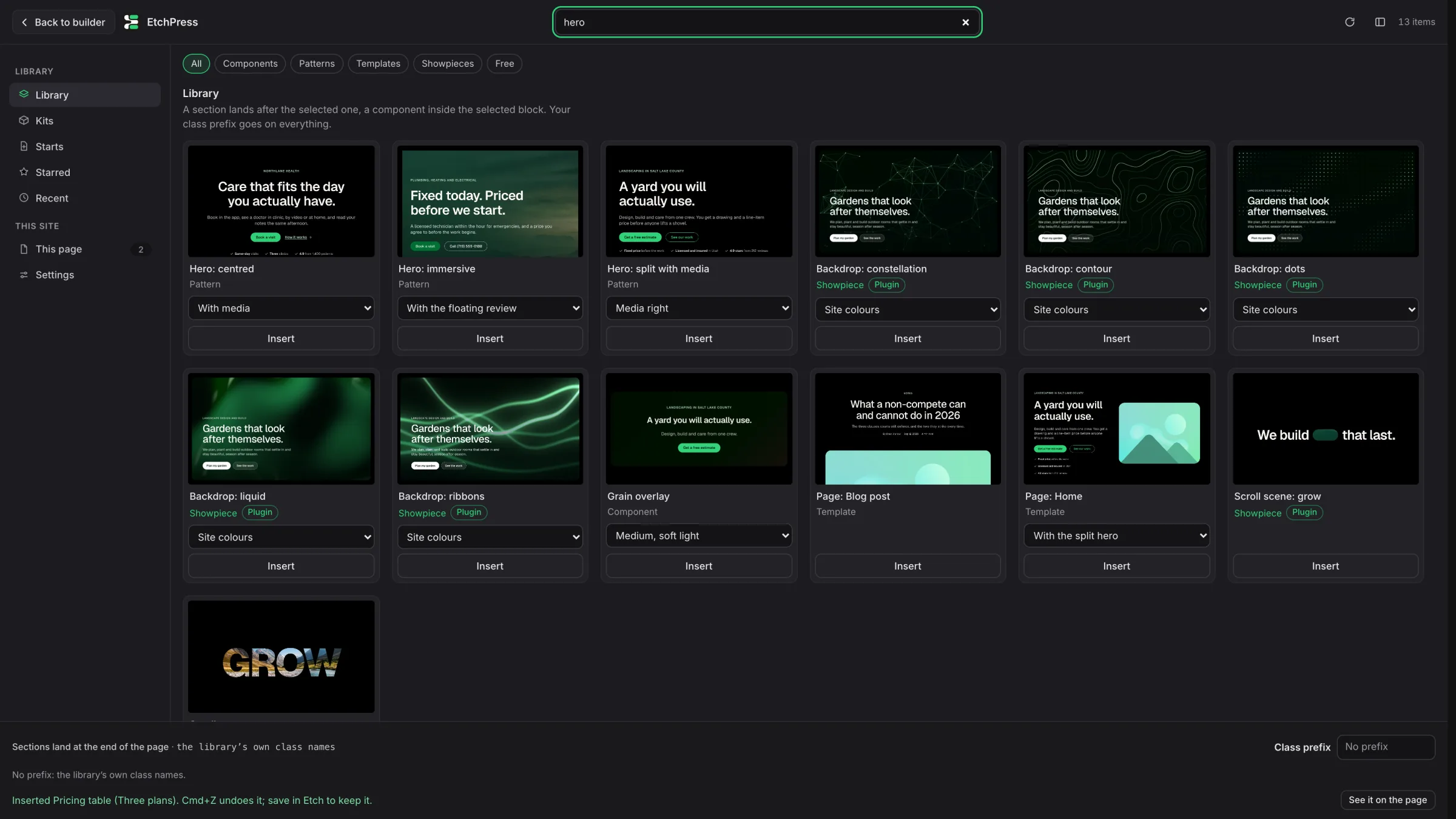
The places
- Library: every item, searched and filtered by kind. Press / to jump to the search box.
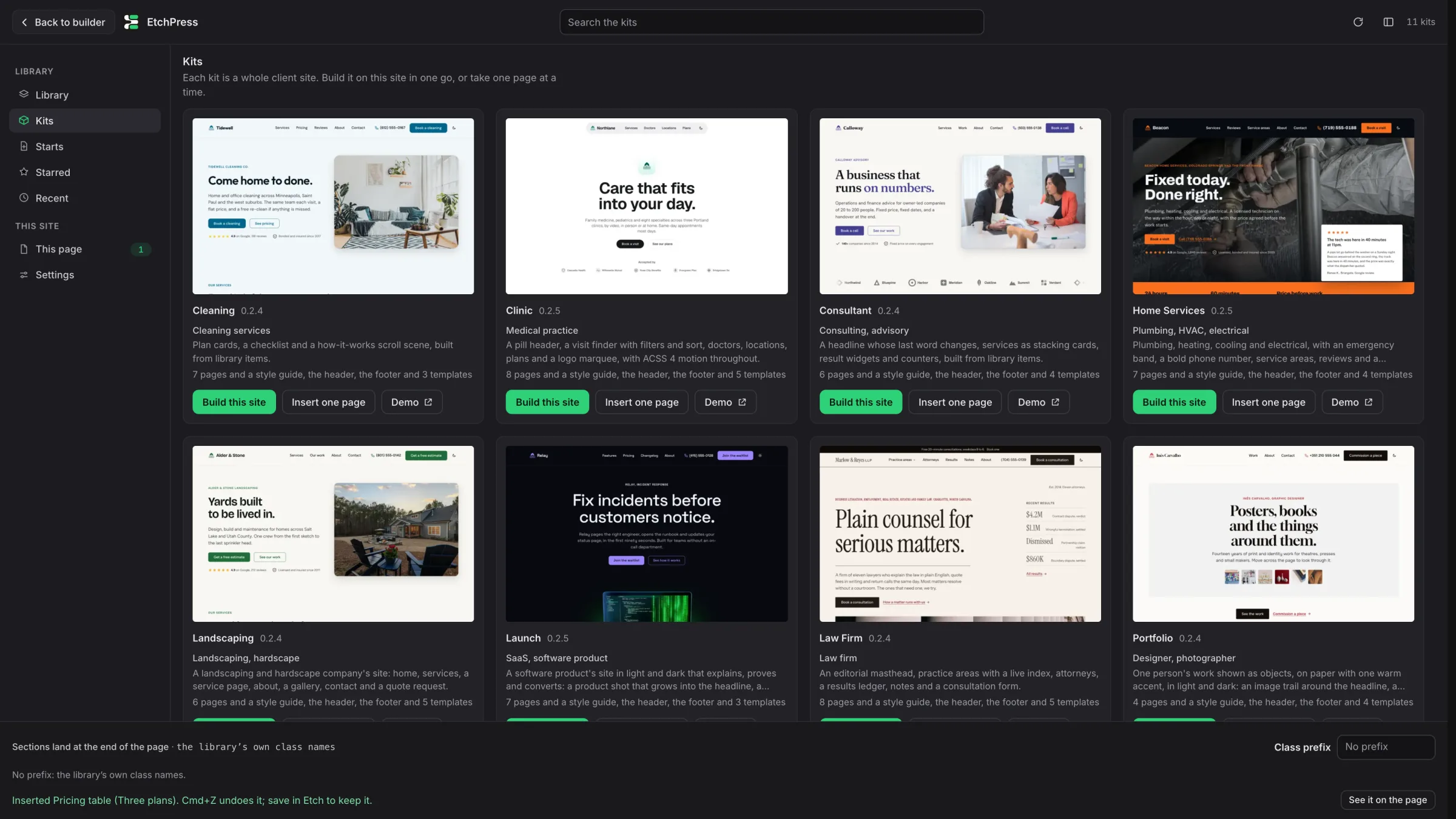
- Kits: every kit as a card, who it is for and what is in it, with Build this site first. Insert one page shows its pages as pictures, then its header, footer and templates.
- Starts: a page from a whole design. Every kit page and the library's page templates as pictures, filtered by the kind of site, plus the pages you saved.
- Starred: the items you starred; the star sits on every card, top right.
- Recent: what you inserted last, newest first.
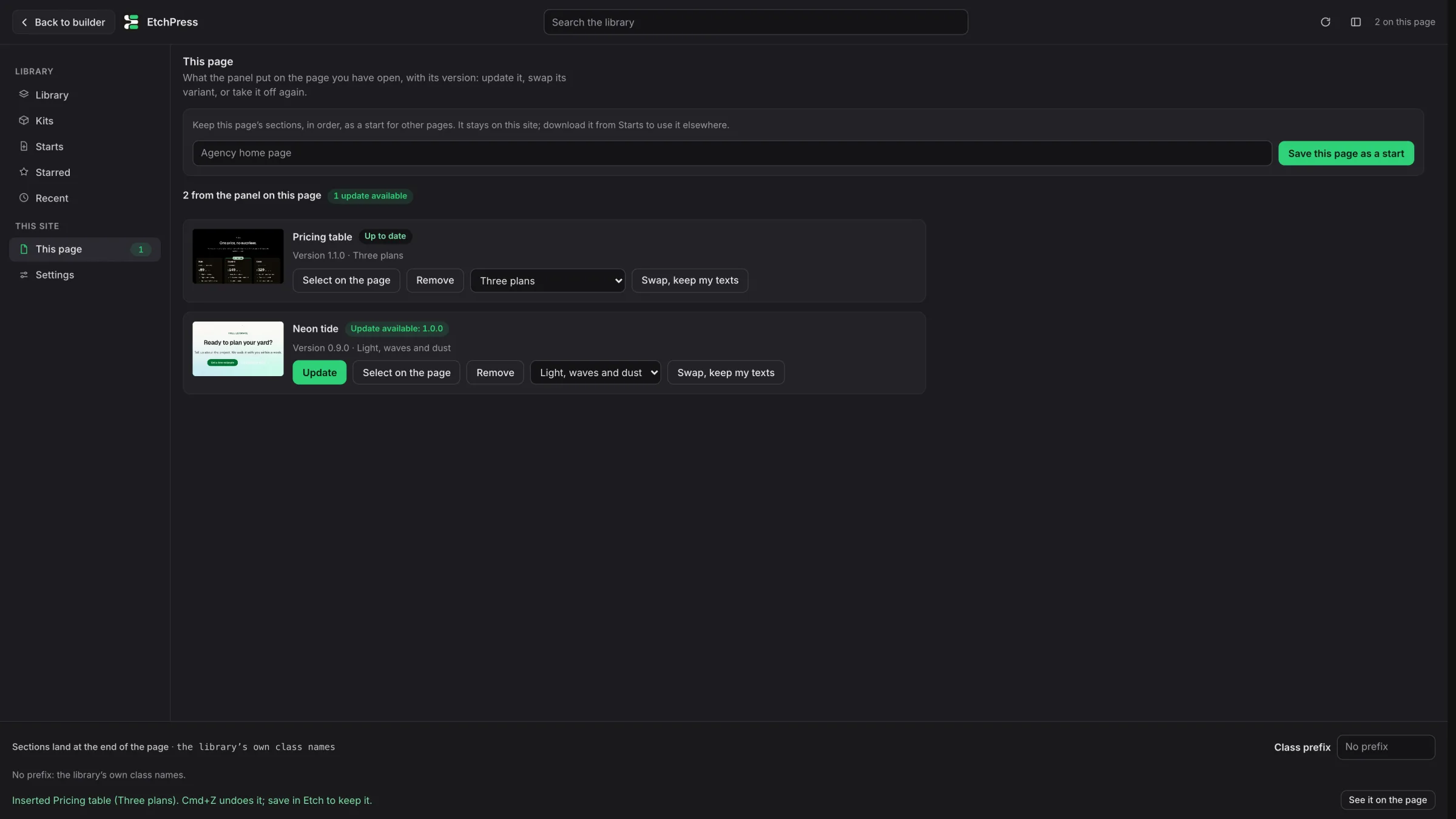
- This page: what the panel put on the open page, with versions and updates. Remove takes an insert off again, and Save this page as a start keeps the page for later.
- Settings: how the panel behaves, kept per user on your own site.
The search box searches the place you are in: the library, the kits, the starts, your starred or your recent items. Every word you type counts, anywhere in a name, a family or a description. When nothing matches, the panel offers to look in Starts or Kits. Clicking a place opens it unfiltered.
Preview an item
Click a card's picture or its name and a large preview opens. Picking a variant switches the picture live, drawn in your builder's own scheme, so you see the one you are about to insert. Insert from the preview, or press Esc to go back to the list.
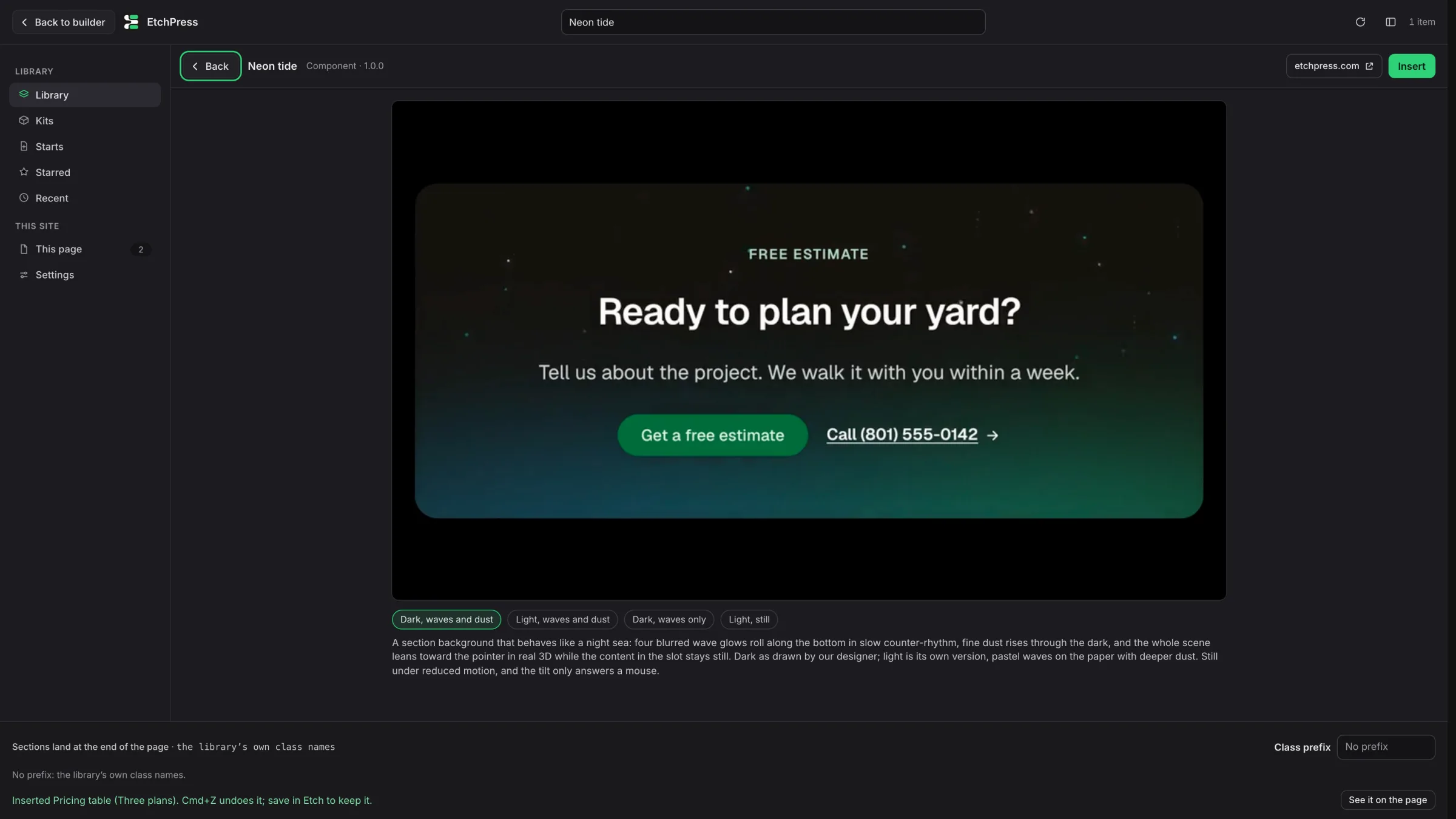
Insert an item
- Find itType in the search box, or filter by kind: components, patterns, templates, showpieces or free items.
- Pick a variantOn the card or in the preview, with the same choices as the item's playground on etchpress.com.
- InsertA section lands after the section you have selected, or at the end of the page. A component goes into the selected block, or right after a selected component.
It is Etch's own paste: Cmd+Z (Ctrl+Z on Windows) undoes an insert, and nothing is kept until you save the page. Before you press Insert, the line under the grid names the block the item will follow and the prefix its classes will carry. With the panel over the whole window the canvas is hidden, so after an insert See it on the page steps it aside and selects what landed.
The design arrives with the insert
Since Runtime 0.10.0, the panel's first insert adds the EtchPress look stylesheet: every token's designed value, and the shapes of the ACSS button and band classes items use, all at zero specificity. On a site that does not define a token yet, a fresh Etch install or a stock site, a paste renders as designed. The moment your Automatic.css defines a token, your value wins, and deleting the stylesheet undoes everything. Kits carry their own look stylesheet, added from their Setup view.
Want an insert to keep the library's exact look even where your site's tokens differ? Turn on Insert exactly as designed in Settings. The panel then adds the EtchPress look stylesheet once (inert outside marked blocks) and marks each section or page it inserts, scoped to that block alone. A component inserted on its own always follows your tokens: Etch keeps no extra mark on one. Remove the mark, or the stylesheet, and your tokens take over. Nothing of yours is changed either way.
Insert a kit page
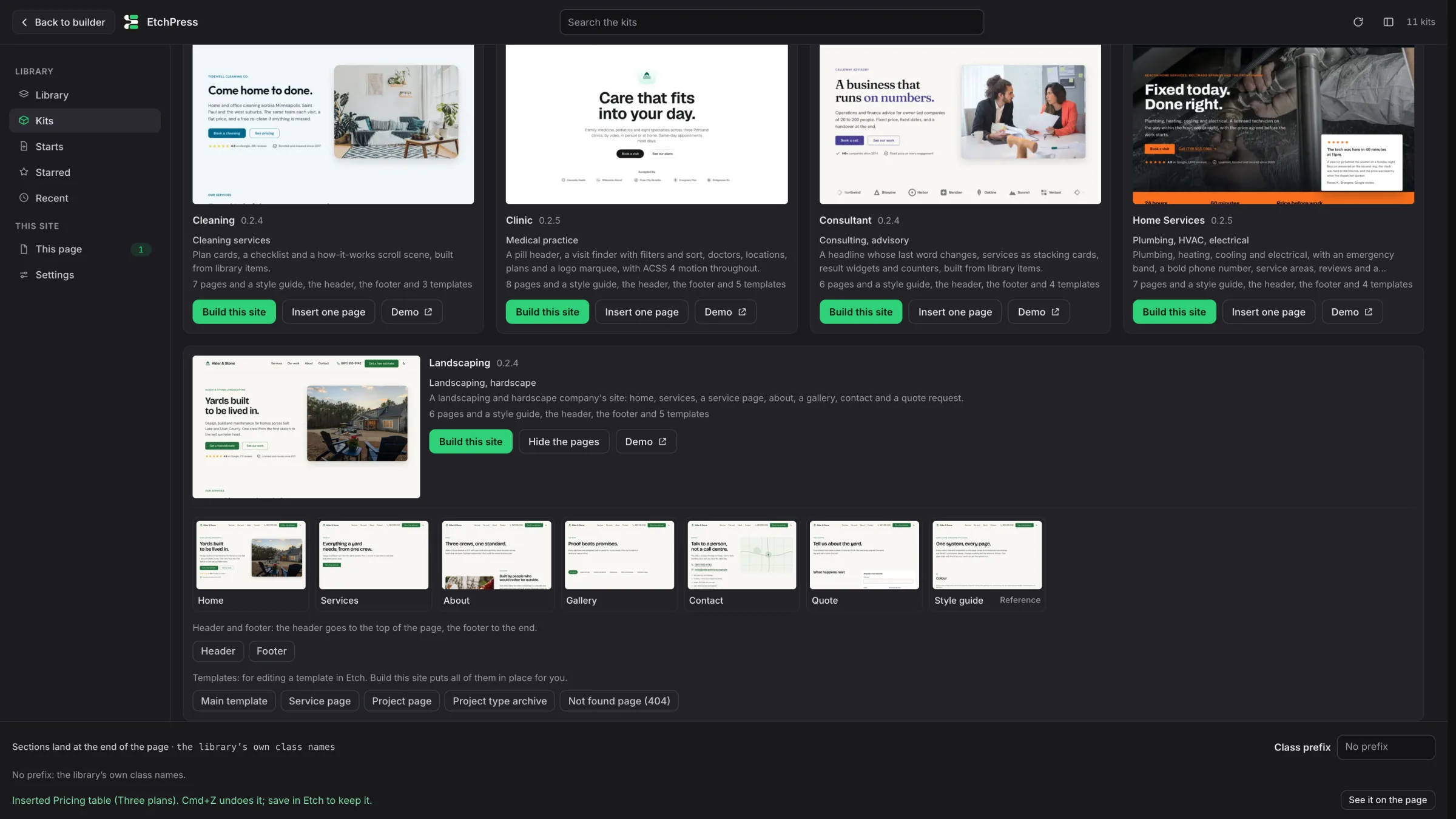
The Kits place shows every kit as a card: its picture (a link to its demo), who it is for, what is in it and how many pages it has, then Build this site, Insert one page and Demo. Insert one page opens the kit's pages as pictures, in the kit's own order with the style guide last, marked Reference. Click one and it goes in section by section. On a fresh site, build the site or add the kit's look first, so the design arrives with it.
Set up a kit
Build this site opens the kit's Setup. On an empty site it leads with Build the site. On a site that already has pages or another kit, it offers two doors, each saying what it keeps and what goes:
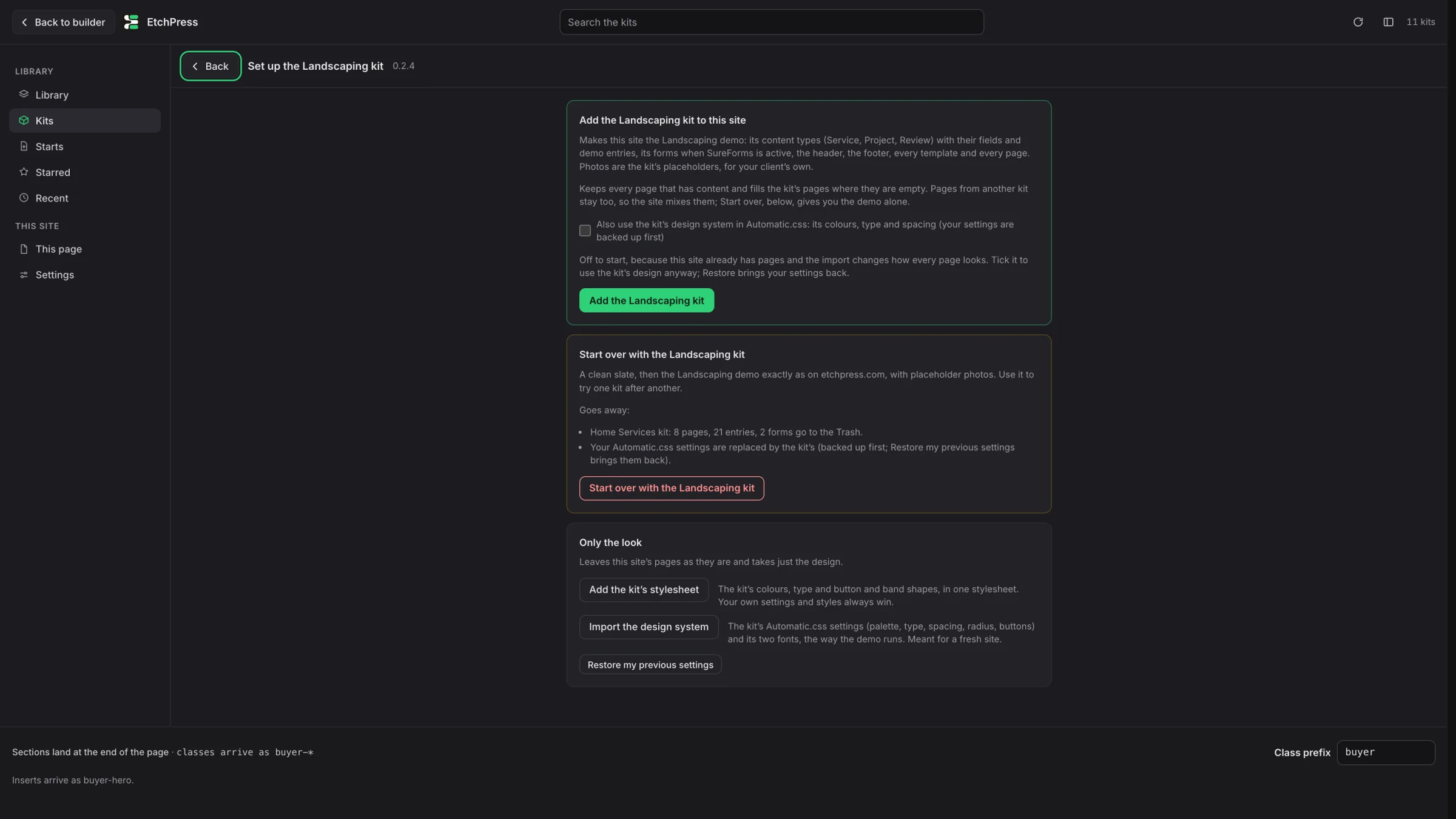
- Add the kit to this site: keeps every page that has content and fills the kit's pages where they are empty. The header, footer and templates become the kit's, with a copy of each kept on the server. The kit's Home becomes your front page only when your front page is empty. If a kept page belongs to another kit, the build says so by name, so a site holding more than one kit is never a mystery.
- Start over with the kit: the clean slate, for trying one kit after another. Every kit on the site goes to the Trash (its pages, demo entries, forms and templates; the content types it added, once nothing uses them), your Automatic.css settings are replaced by the kit's, and the kit is built from empty: the demo exactly, with placeholder photos. Your own pages stay unless you tick the box that names them. Nothing is deleted for good: WordPress keeps the Trash for 30 days, templates keep their copy, and Restore my previous settings brings your Automatic.css back. For a full copy of the site first, run your backup plugin, then come back.
- Only the look: Add the kit's stylesheets (its tokens and its button and band shapes at zero specificity, and its motion and light and dark rules; your settings and styles always win, and deleting the stylesheets undoes it) and, for an administrator on an Automatic.css site, Import the design system (the palette, type, spacing, radius, buttons and fonts the demo runs, backed up first).
The design system tick on Add the kit starts off on a site that already has pages, because the import changes how every page looks. Start over always imports it: that is what makes the result the demo.
The header, the footer and the templates
Under a kit's Insert one page, Header goes to the top of the page and Footer to the end, whatever is selected, and the panel says where it went. To show them on every page, open your main template in Etch and insert them there. The templates insert their sections the same way a page goes in: open the template in Etch first, then insert.
Start a page from a design
Starts lists every kit page and the library's page templates as pictures, filtered by the kind of site; the panel remembers your choice. Open an empty page and a small card offers four of them beside the canvas, as pictures, leading with the kit already on your site. It reports its progress as the page goes in and never takes your cursor; it appears once for a given page, Not now hides it there for good, and a setting switches it off everywhere.
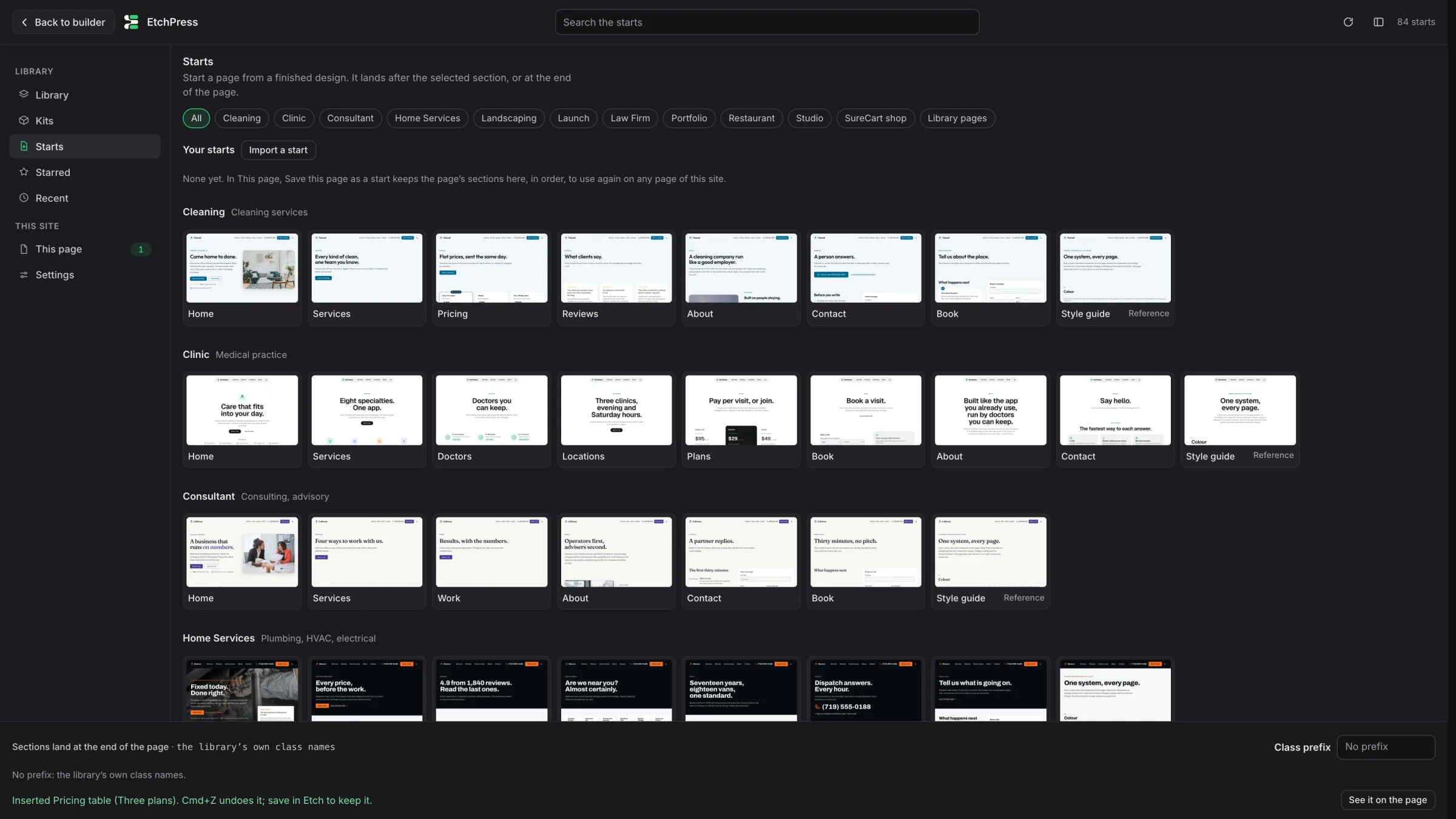
When a page is worth keeping as a pattern, name it in This page and press Save this page as a start. It stays on your site, under Starts, ready for any page. Download turns it into a file you can import on another site.
Take an insert off again
This page lists everything the panel put on the page; a kit page or a start counts as one entry. Remove takes all of it off in one click. If you changed a section since it went in, the panel names it and asks first. Bring it back puts it all back in the same place.
Your class prefix
Type a prefix in the bar at the bottom and every insert arrives renamed: acme-hero instead of hero, components and scripts included. Your ACSS classes keep their names. The site remembers the prefix. If your site's EtchPress parts already carry one, the panel fills it in for you; clear the field to insert with the library's own names.

This page
This page lists what the panel put on the page you have open: each copy with its version, its variant and its prefix. When the library has a newer version, the row says so, and Update brings that copy to the current version, in place; Cmd+Z twice brings the old one back. The panel finds its inserts again every time you open the page, and lists only what you saved. Inserts made with Runtime 0.11.1 or later are found after a reload; earlier ones only until the builder was closed.
Share a page with a link
At the top of This page, Share with a link hands a page to someone without making it public: the Brand guide you built for a client, or a page they should see before it goes live. The card names the page first. Share with a link makes the page private, so it leaves search, menus and the sitemap and anyone else sees Page not found, and gives you a link to copy. Whoever has the link sees the whole page, with your header and footer. It is never indexed or cached, and it sends no address on to the sites it links to.
- New link: makes a fresh link; the old one stops opening the page.
- Stop sharing: the link stops working and the page goes back the way it was, published or draft.
- Saving the page in Etch keeps it shared. Deleting the plugin puts every shared page back the way it was.
Swap a variant, keep your texts
On a This page row, pick another variant and press Swap, keep my texts. The section is replaced with the chosen variant, and the texts you edited travel to it: the same heading you rewrote lands in the new variant's heading. Everything else about the copy takes the new variant's look. A text that has no place in the new variant is let go, and Cmd+Z twice brings the old section back.
When a component is already on your site
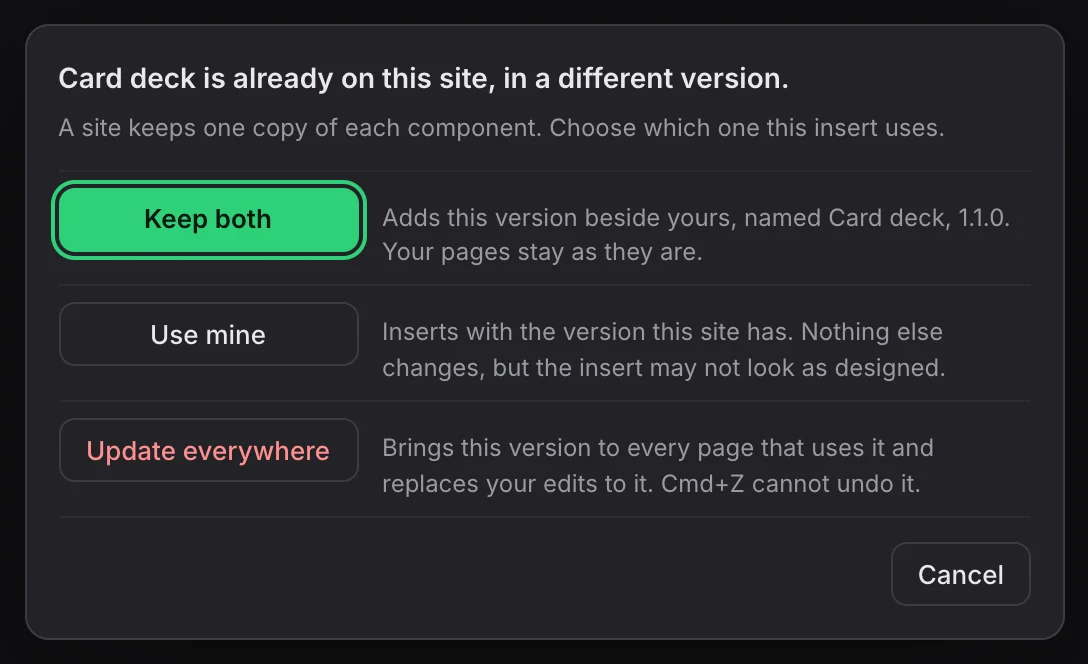
If an item uses a component your site already has in a different version, the panel stops and asks, over the panel, with the safe answer first:
- Keep both: the new version goes in beside yours under its own name, such as Card deck, 1.1.0, or Page intro, Cleaning for a kit. Nothing on your other pages changes, so pages from different kits work on one site, and the next insert from the same kit uses that copy without asking.
- Use mine: the item goes in with the component you already have. Nothing else changes, but it may not look as designed.
- Update everywhere: the library version replaces yours on every page that uses it, including any edits you made to it. Cmd+Z does not undo this.
- Cancel: nothing is inserted.
One more case: Etch saves a component the moment it is pasted, but the styles it brought only when you save the page. Insert something, leave without saving, and the component can come back without some of its classes. The panel tells that apart and asks to repair it: Repair and insert puts the classes back everywhere the component is used, then inserts. Save the page afterwards.
Compose
Under Library (runtime 0.16.0, administrators): say what a section or a page is for, and the composer chooses the library parts that fit and writes their words, on your own model key (Claude, OpenAI or OpenRouter; the key stays encrypted on your site). The plan shows each part's picture and words before anything lands; Insert is the ordinary insert with the words in the part's props, so Cmd+Z takes it back and This page lists it. When nothing in the library fits, Write a new section instead has the model write one under the house rules and checks it as code and on your canvas before it stays. When the brief is a list of things (plans, cards, steps, team, reviews, FAQs), it writes a real Etch component with props, a repeater and a loop, conditions for the optional parts and a select for the style, puts one instance in the section with the words written, and checks that the component registered and the loop drew every item.
Words
Under Compose (runtime 0.17.0): the words of the selected block, or of the whole page block by block, rewritten in one of four modes: clearer, for intent (the reader's outcome first, then the proof, then the step), for search (the service and the place said once, the way a person would), or more human (the patterns a model leaves behind, removed). An instruction goes with the mode: shorter, warmer, in Spanish. Nothing is invented: fill Facts about this site once (the business, the place, who it is for, the services, the proof, the offers, the voice) and the rewrite uses those facts and the words already on the page; a text that would lose a number, a name or its length comes back as it was and the panel says so. Cmd+Z takes a rewrite back; save in Etch to keep it. The rulebook is the etchpress-copy skill in your skill download, so your agent writes the same way.
The whole site, the search result, the pictures
Runtime 0.18.0. The whole site: Words with The whole site rewrites every published page built in Etch, one page at a time: each page is backed up, opened, rewritten block by block and saved, and Stop ends the run after the block in hand. Put every page back restores each page exactly as it was before the run. The search result: under Words, the page's title and description for search, written from its own words and your facts, shown with a search-result preview and character counts; you edit them, then Save writes them into the SEO plugin the site uses (Yoast SEO, Rank Math, SEOPress, The SEO Framework or All in One SEO), or EtchPress prints them when the site has none. Put the previous back restores what was there. Pictures: for the selected block, every picture with its alt text; Choose opens your media library, Write alt text has the model look at the picture and describe it for someone who cannot see it, and Apply puts both in the block and the alt text in the media library too.
Agents
Under This site (runtime 0.15.0): the commands that connect Claude Code, Codex or Cursor to this site's library through the EtchPress MCP, with your licence key and this site's prefix already in them and a Copy button on each; Etch's Connector step; where the skill goes. Administrators only.
Settings
Last in the list of places: close the panel after an insert, select what was inserted, suggest a start on an empty page, insert exactly as designed, the card size, and the layout the panel opens in, whole window or column. Settings, Starred and Recent are yours alone, kept on your own site; the insert records live with the page. Deleting the plugin removes all of it.
The Motion stylesheet
Items that move with CSS, such as Neon tide's waves, use the EtchPress Motion stylesheet. On WordPress the plugin loads it on every page, so there is nothing to install.
Licence and privacy
Browsing works without a key; inserting needs your licence key activated on the site. Your site, not your browser, fetches the library's list from etchpress.com, and for each insert sends your licence key, its activation and your class prefix, so we can check the licence. Nothing about your pages or your visitors is sent, and nothing the panel keeps (starred, recent, settings, insert records) leaves your site.
Etch Studio
Studio has no plugins, so there is no panel there. Copy from the item pages with the same class prefix, or let your AI agent insert for you. A kit package's look.css, added as a stylesheet in Studio, carries the kit's design the same way the panel's Setup does on WordPress.